So, after offloading some fileshares to optimized NAS-storage (I think it is EMC? Or Dell? or something else) – we noticed that a new server had issues connecting to (mapping) the fileshare using the system account. Connecting as a user worked without issues, however any connection attempt by the system-account itself caused some issues.
Error looks like this;
System Error 1808 has occured. The account used is a computer account. Use your globl user account or local user account to access this server.
So, we found some generic articles and quite often the resolution pointed to a change on the NAS-side (VNX has an article), or switching to a Windows-server as the host resolving – however, the amount of data was to much to move around and the legacy server didn’t have any issues.
It seems that this relates to Encryption Types for kerberos. Altering the below key should be a sledge-hammer, and most likely you can tweak it to maintain some level of security.
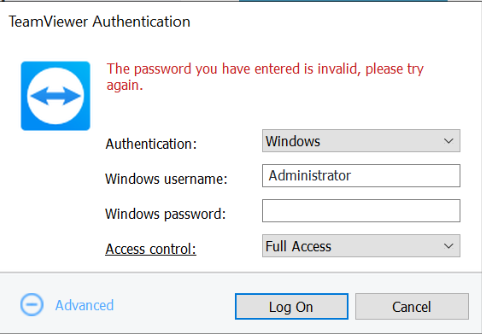
Teamviewer has a great article howto handle User Account Control prompts within QuickSupport or similiar solutions, and as part of that you are intended to provide your own credentials when connecting. There are a few caveats that will unfortunately provide little insight when trying to connect and might indicate a simple failure. If presented with an error message like this when attempting to logon:
The password you have entered is invalid, please try again.
You might want to ignore the wording, and consider it a simple denied logon…
Why would you be denied logon then?
You, or the user account you are using, is denied interactive login. Yes, Teamviewer will simply restart the application using an interactive login to overcome the UAC-prompt – and if your account is denied interactive login this will not work.
You are using an account which doesn’t exist. This may be a local account, an Active Directory Domain account, or an Azure Active Directory Domain account. Verify that the account exists – and that you have entered it correctly in the username-box
To logon with local credentials – type in the username the following format; Yourusername
To logon with Active Directory Domain credentials – type the username in the following format: Yourdomain\Yourusername
To logon to an Azure Active Directory – type the username in the following format: Azuread\yourusername@yourdomain.com
Note that anything in bold should be written as-is.
Potentially – you could be mistyping your password aswell.
Verify account expiration, locked out and all the normal variations of a denied logon in general.
ConfigMgr has since version 1806 been supporting a Remote Content Library, which in simplified terms means that you can decouple your existing infrastructure and place the Content Library on a file-share. There are a few caveats though…
Read the docs first to get the gist of things – it is always good to review the basics. After that – let’s get the details straight.
A great, even though some details changed, walk-through of the entire process is – including loads of great screenshots – Karthick’s blog
You most likely should verify that the share is located on a Windows-server with a NTFS-filesystem according to this thread.
Even thought it is documented a lot and pretty much everywhere, do note that the pointer to the content-library has to be a pre-existing folder in a file-share – not the path to the file-share itself.
If you expect to run this overnight – follow HappySCCMs advice and disable the backup temporarily. In addition – this seems to be the only place which actually describes a move experience based on some type of real workload. The initial copy performed by ConfigMgr doesn’t stop anything at the site, and can therefore be started during a non-maintenance window. A second copy status will actually halt any type of distribution (and wait for all ongoing distributions to be completed) – and that should occur during a planned time when there isn’t any business need to perform any updates to content.
Did you miss any of this and started a file-transfer anyways? Someone posted a fool-proof way to cancel an ongoing move in the forums – somewhat simplified here (and most likely not supported):
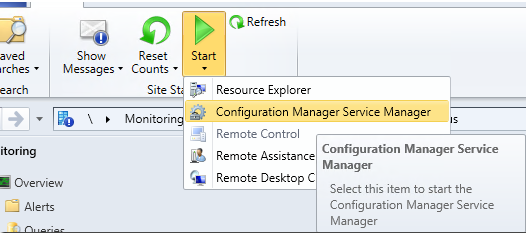
Fire up the Service Manager from Monitoring –> System Status –> Site Status
Query DistMgr service and stop it
Head onwards to the inboxes… Find the …\Microsoft Configuration Manager\inboxes\distmgr.box and delete any .CLM-file.
Next up is to start SQL Management Studio and find the CM-database. Do a query (in a query Window):
select * from ContentLibraryMove
Note the ID and then run the following query to clean it out
Delete from ContentLibraryMove Where ID = '____'
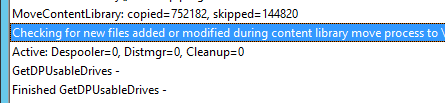
For some reason everyone keeps saying Service Window for this, but as far as I can tell – the packages are inserted and distributed as expected for the copy phase of it. After the initial copy this entry shows up;
So you have implemented Pulse Secure as a VPN-solution? Well, here are somethings that just about every consulting firm or department eventually will ask you to implement along-side it – so the Pulse Secure client works. The details aren’t here – but more the general mindset, what todo when – but not exactly how every scheduled task / script looks like. Hopefully this will guide you – and potentially arm you with possibility to fix more problems in the future.
Triggers
First things first – a great way to trigger activity is based on Pulse Secure events – described more in detailed on their admin-guide. Common event-ids that might be useful are;
Disconnect – 302 / 106
Connect – 312 (not documented)
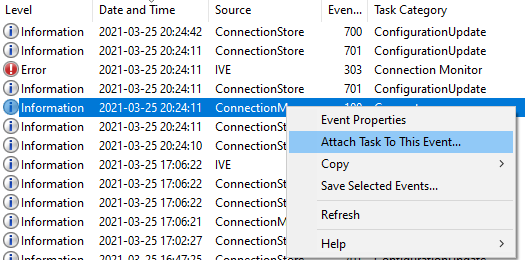
To create a scheduled task for any event – simply find a sample event a select to create a Scheduled Task;
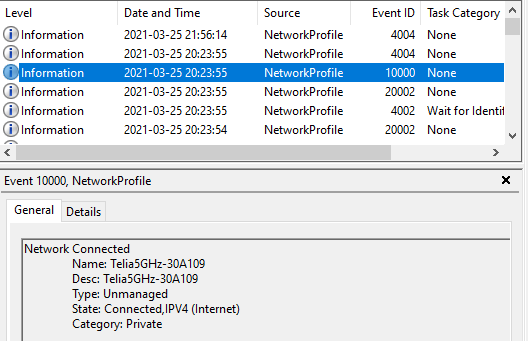
In addition to Application and Services log / Pulse Secure, you can always find Microsoft-Windows-NetworkProfile/Operational. This contains great entries for what network you connect to, what network profile type of profile you connect to. Event-id 1000 within NetworkProfile is simply that you are connected to a new network as a sample.
Actions
What actions will be asked to run when these events happen?
Re-register DNS
Name-resolution for the helpdesk not quick-enough to connect to your laptop once you are connected? On event Connect (detected by Pulse Secure/Operational and the event id 312) you can simply have the scheduled task run the command-line – and this will mitigate some stuff.
ipconfig /registerdns
DNS Suffix search list
Pulse normally appends the searchlist of the DNS-suffixes that are set on your client. It also fails to clean this up properly – so name resolution after a disconnect can be challenging. A tidy way todo this would be to trigger on a disconnect (primarily event id 302 within Pulse Secure, but also 106 might be applicable) and then do a sweep. Sample code;
SuperUser has some options if you have a longer list of suffixes to handle..
Host-checker antivirus check
Did someone implement a host-checker and decided something needs to be up-2-date? Like antivirus definitions? Use trigger NetworkProfile with EventID to identify that a device has successfully connected to a network, and then do a check which network – and if not the corporate one – start up the processes to ensure users can avoid having a failed connect.
Sample functions (to check what network and do a validation of Defender AV Signature) – in VBscript as this was to be firing of quite heavily on all endpoints.
Private Function NetConnectionProfileName(Network)
	Dim objWMIService
	Dim colItems

	NetConnectionProfileName = False

	On Error Resume Next
	Set objWMIService = GetObject("winmgmts:\\.\root\StandardCimv2")

	Set colItems = objWMIService.ExecQuery("Select * From MSFT_NetConnectionProfile")

	For Each objItem in colItems
		if objItem.Name = Network Then
			NetConnectionProfileName= True
		End if
	Next

	Set objWMIService = Nothing

End Function

Private Function DefenderSignatureUpdate
	Dim objWMIService
	Dim colItems

	DefenderSignatureUpdate = False

	On Error Resume Next
	Set objWMIService = GetObject("winmgmts:\\.\root\Microsoft\Windows\Defender")

	Set colItems = objWMIService.ExecQuery("Select * From MSFT_MPComputerStatus")
	Wscript.echo "Definition-update: " & Left(objItem.AntivirusSignatureLastUpdated,8) & "Today: " & year(now())&right("00" & month(now),2)&right("00" & Day(now),2)
	For Each objItem in colItems
		if Left(objItem.AntivirusSignatureLastUpdated,8) = year(now())&right("00" & month(now),2)&right("00" & Day(now),2) Then

			DefenderSignatureUpdate = True
		End if
	Next


	Set objWMIService = Nothing

End Function
A similiar way within Powershell to detect a Domain-profile is posted on Twitter:
Garbage code is garbage, but effectively: $ConnectedProfiles = Get-CimInstance -ClassName MSFT_NetConnectionProfile -Namespace root/StandardCimv2 if ($ConnectedProfiles.NetworkCategory -like "*2*") { Write-Log "Yay you're fine and Windows thinks you're on the Domain!" }
Windows Firewall profile doesn’t always switch to Domain when you use a third-party VPN client
This isn’t really an action. You could most likely trigger something off the event ids – however, Microsoft has documented a great article about this problem. Pulse allegedly fixed this in a really old-version of the client, but to this day noone is happy about it. Set the two workarounds as part of your baseline for devices connecting via VPN – and you should be good. Pulse (now owned by Ivanti) will not be fixing this it seems. As far as I can tell Pulse adds routes, and then doesn’t notify Windows in anyway that triggers a rediscovery for Domain-connections.
Microsoft states:
First, disable Domain Discovery negative cache by adding the NegativeCachePeriod registry key to following subkey: HKEY_LOCAL_MACHINE\SYSTEM\CurrentControlSet\Services\NetLogon\Parameters Name: NegativeCachePeriod Type: REG_DWORD Value Data: 0 (default value: 45 seconds; set to 0 to disable caching)
If issue doesn’t resolve, further disable DNS negative cache by adding the MaxNegativeCacheTtl registry key to the following subkey: HKEY_LOCAL_MACHINE\SYSTEM\CurrentControlSet\Services\Dnscache\Parameters Name: MaxNegativeCacheTtl Type: REG_DWORD Value Data: 0 (default value: 5 seconds; set to 0 to disable caching)
Force a new network-profile
Your client still skipping around and not getting stuff right? Well, you can switch over to a Private Profile. Public is by default, and Domain requires that a Active Directory is reachable (process documented in previous article from Microsoft) – but Private you can switch to.
See this one-liner to detect a specific network and switch the Network Profile
This is how you deploy Bitlocker and make everyone fall in love with you.
1. Don’t understand Bitlocker – and read some generic Microsoft guideline which provides you with a generic approach and doesn’t compensate for your lack of understanding
2. Don’t read Adams detailed walk-through, and in particular skip the section regarding PCR Settings if you are deploying this in a pre-Windows 10 / SecureBoot era.
(or the gist: enable PCR validation: 0, 1, 8, 9, 10, & 11 only for legacy BIOS)
3. Really don’t make an effort to push this forward to a SecureBoot era where the annoyance for all users are minimal.
4. Don’t validate any hardware – any BIOS-versions, TPM versions or anything that could potentially have an impact on the experience of Bitlocker.
5. Don’t test anything and just assume that it works as all the guidelines that say you “must” do this will never have any negative impact (and is there a section which says impact? don’t read it)
(Interactive logon: Machine account lockout threshold should match your account lockout setting and also not be as low any given user will force the machine into recovery mode every single day)
6. If the a user is forced to provide a Bitlocker Recovery Key – don’t reset the platform validation data. Most likely the Bitlocker Recovery key will not show up during the next reboot.
7. Make sure you configure stuff – especially things that contradict the initial setup state of Bitlocker. Future assumptions made by Microsoft will surely not impact you.
8. Sighs. Why? This seems to be required if using the Machine Account lockout threshold….
“Windows Settings” – “Security Settings” – “Local Policies/User Rights Assigment”
“Access this computer from the network” – “BUILTIN\Administrators” – append: “NT AUTHORITY\Authenticated Users”
To start of this blog-post we have to set a few basics…
Windows 10 20H2 includes Edge Chromium. Specifically – Edge Chromium v84 (something something)
If you deploy Edge Chromium later version (like 87? 88?) to your 1909/2004 devices – and then upgrade to Windows 10 20H2, you will effectively downgrade Edge Chromium to 84.
As far as I can understand – the details, the workarounds and apparently a promise that this will be better is all published on Borncity.
The issue at hand though is that Edge Chromium is a moving target, so including even the latest version today in whatever upgrade process you have – will most likely in a months time have an older version than what you have installed on your endpoint. This is installer will bomb-out with “there is a newer version already installed”. Yet, the users will be stuck with Edge Chromium 84. I don’t quite get why this is the case. The previous version is installed, but version 84 always starts and you can’t upgrade because of this and for some reason Edge Chromium is special software that just doesn’t tag along?
Now, to workaround this you can read the information regarding the installed Edge Chromium (it is installed, just not running) and then perform an over-ride (REINSTALL=ALL REINSTALLMODE=A according to the comments on Borncity).
Let’s gather what we need to create something simplistic.
Function to retrieve installed software in Powershell. There are a bunch out there. You can use PSADT. I just found one that was small and did the trick. I can see so many problems with it – but it works. Unfortunately I have no idea where I stole this from. If you want todo properly – use PSADT. If I stole this from you – post a comment and I will remove it and post a link instead.
function Get-InstalledSoftware {
    <#
    .SYNOPSIS
        Retrieves a list of all software installed
    .EXAMPLE
        Get-InstalledSoftware

        This example retrieves all software installed on the local computer
    .PARAMETER Name
        The software title you'd like to limit the query to.
    #>
    [OutputType([System.Management.Automation.PSObject])]
    [CmdletBinding()]
    param (
        [Parameter()]
        [ValidateNotNullOrEmpty()]
        [string]$Name
    )

    $UninstallKeys = "HKLM:\Software\Microsoft\Windows\CurrentVersion\Uninstall", "HKLM:\SOFTWARE\Wow6432Node\Microsoft\Windows\CurrentVersion\Uninstall"
    $null = New-PSDrive -Name HKU -PSProvider Registry -Root Registry::HKEY_USERS
    $UninstallKeys += Get-ChildItem HKU: -ErrorAction SilentlyContinue | Where-Object { $_.Name -match 'S-\d-\d+-(\d+-){1,14}\d+$' } | ForEach-Object { "HKU:\$($_.PSChildName)\Software\Microsoft\Windows\CurrentVersion\Uninstall" }
    if (-not $UninstallKeys) {
        Write-Verbose -Message 'No software registry keys found'
    } else {
        foreach ($UninstallKey in $UninstallKeys) {
            if ($PSBoundParameters.ContainsKey('Name')) {
                $WhereBlock = { ($_.PSChildName -match '^{[A-Z0-9]{8}-([A-Z0-9]{4}-){3}[A-Z0-9]{12}}$') -and ($_.GetValue('DisplayName') -like "$Name*") }
            } else {
                $WhereBlock = { ($_.PSChildName -match '^{[A-Z0-9]{8}-([A-Z0-9]{4}-){3}[A-Z0-9]{12}}$') -and ($_.GetValue('DisplayName')) }
            }
            $gciParams = @{
                Path        = $UninstallKey
                ErrorAction = 'SilentlyContinue'
            }
            $selectProperties = @(
                @{n='GUID'; e={$_.PSChildName}},
                @{n='Name'; e={$_.GetValue('DisplayName')}}
            )
            Get-ChildItem @gciParams | Where $WhereBlock | Select-Object -Property $selectProperties
        }
    }
}
Second you need something to validate that MSIExec isn’t busy. Like the function Test-IsMutexAvailable from (you guessed it) PSADT. Come to think of it – you really should just throw everything I did in a garbage bin and rewrite it using the PSADT framework.
Third – here is the crude and basic logic of what we want to run after the Windows 10 20H2 upgrade is completed.
Consists of – arguments to run the re-install of Edge. Oddly – the latest version should have a ProductCode, but not version 84 which comes in the box. Then wait until MSIExec had its coffee. Once coffee is up – run the install…. Logging optional.
This should run if the upgrade is successful. Not entirely sure how this works in reality – but Microsoft offers a success.cmd since 2004 so that would be a good idea to use.
Ned Pyle has ensured there is a Event-log that details any attempts to communicate with SMB1 (incase this still is enabled on your endpoint). It exists both for SMBServer and SMBClient
See his great post for specifics regarding the event;
In Windows 10/Server Ver 1709 (i.e. Fall Creators/RS3), we added auditing of SMB1 *client*. If SMB1 client installed, we write Microsoft-Windows-SMBClient/Audit event 32002 when the device is told by remote server "I require SMB1, I am scum!" See?
As of Configuration Manager (or MECM) 1910 you can utilize CMPivot to query all Event-logs (previously only a subset where available is only the Get-WinEventLog cmdl:et was used) – including SMBClient/Audit.
Sample query – summarized the number of events 30 days backwards per client
WinEvent('Microsoft-Windows-SmbClient/Audit', 30d)
| where ID == 32002
| summarize count() by Device
Sample query – device, date and message
WinEvent('Microsoft-Windows-SmbClient/Audit', 30d)
| where ID == 32002
| project device, datetime, Message
In addition you can create a collection of the clients you found;
Or if it needs to be pretty;
WinEvent('Microsoft-Windows-SmbClient/Audit', 30d)
| where ID == 32002
| summarize count() by Device
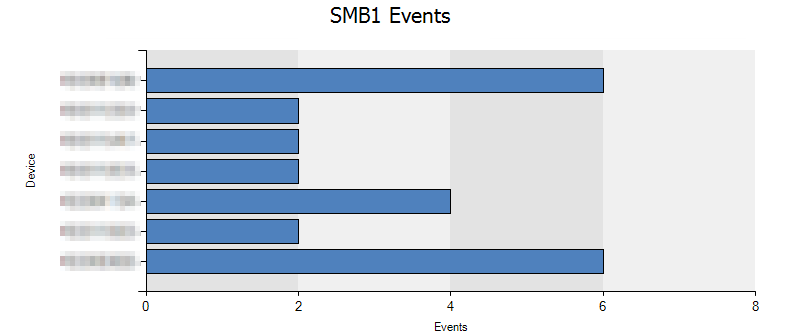
| render barchart with (kind=stacked, title='SMB1 Events', ytitle='Events')
Wrote these notes on how so many Office issues were solved. Sadly – this still applies – and a recent thread from Twitter reminded me that it might be useful.
Printer
Temporarily set the printer to ‘PDFCreator’ as default printer
Verify if the issue is resolved
Addins
Start the application in safemode or without addins
Sample:
winword.exe /a
excel.exe /s
outlook.exe /safe
If the application doesn’t crash if the Office application is started without addins, verify what addins the user has installed.
Narrow down the issue and attempt to identify which addin is causing the crash
You can review installed addins by selecting;
File -> Options
Review the Addins-option
Temporarily disable addins by using the Manage -> Go.. at the bottom
Some addins may require that you temporarily start the application as Administrator.
Profile
Close all Office applications
Registry issues
Try to temporarily rename the settings for a specific application in registry
Open regedit.exe
Locate the;
HKEY_CURRENT_USER\Software\Microsoft\office
Locate the crashing application;
Word, Excel, PowerPoint
Sample Path;
HKEY_CURRENT_USER\Software\Microsoft\Office\Word
Rename the registry key for your application – using Word as a sample;
word_temp
Retry to start the application
Repeat the same steps for the specific application
HKEY_CURRENT_USER\Software\Microsoft\Office
Locate the specific version;
12.0 -> 2007
15.0 -> 2013
16.0 -> 2016
If the issue is not resolved, rename the version registry key – using 12.0 as a sample;
12.0_temp
If the issue is not resolved by temporarily renaming registry keys it is recommended to restore all registry-keys to their original name
Files
You can temporarily rename application specific folders for Office-applications. Suggestion is to rename the below folders to _temp and verify if the issue is resolved
Regardless what type of estate of Windows-devices, there always seems to be a need of clearing out unused profiles from a computer to save diskspace, increase performance and what not.
In Windows 7 there was an issue (resolved by a hotfix) that simply loading up a ntuser.dat file would change the timestamp of when it was last written to. It seems that this has now been the defacto default behaviour for Windows 10, and a long-running thread disusses different ways of adressing the issue – how can you identify if a profile was recently used on a device? Nirsoft tools (aren’t they great?) provide a great and easy to read overview if logon history based on security event logs.
That seems tedious. Using the written time for the folder doesn’t seem to be accurate – and the risk of removing active user profiles is high. However, if one could track the last-write time for the registry entry for the profile – we should be good, right? Unfortunately – last write time for the registry entry isn’t there out of the box using Powershell (or VBScript etc). Seems to be a few things posted on Technet Gallery (to be gone soon) that will provide the missing piecies.
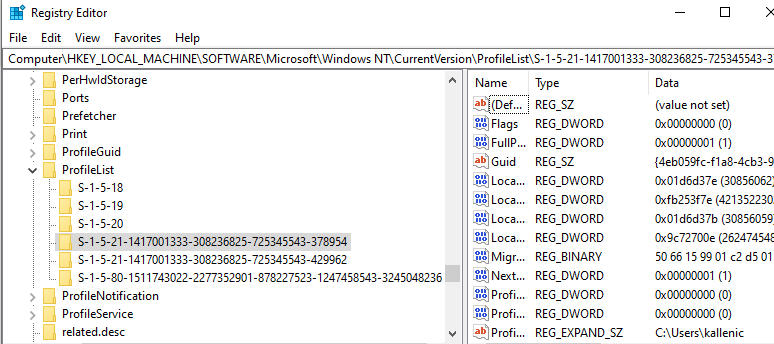
Where are we looking? Right here;
Use the function Add-RegKeyMember, loop through all profiles and then filter any potential things you want to leave behind – and we should be able to clear out not so active profiles. A few dangerous lines commented out so you can copy and paste at will.
function Add-RegKeyMember {
 <#
 .SYNOPSIS
Adds note properties containing the last modified time and class name of a
registry key.

.DESCRIPTION
 The Add-RegKeyMember function uses the unmanged RegQueryInfoKey Win32 function
 to get a key's last modified time and class name. It can take a RegistryKey
object (which Get-Item and Get-ChildItem output) or a path to a registry key.

.EXAMPLE
 PS> Get-Item HKLM:\SOFTWARE | Add-RegKeyMember | Select Name, LastWriteTime

Show the name and last write time of HKLM:\SOFTWARE

.EXAMPLE
 PS> Add-RegKeyMember HKLM:\SOFTWARE | Select Name, LastWriteTime

Show the name and last write time of HKLM:\SOFTWARE

.EXAMPLE
 PS> Get-ChildItem HKLM:\SOFTWARE | Add-RegKeyMember | Select Name, LastWriteTime

Show the name and last write time of HKLM:\SOFTWARE's child keys

.EXAMPLE
 PS> Get-ChildItem HKLM:\SYSTEM\CurrentControlSet\Control\Lsa | Add-RegKeyMember | where classname | select name, classname

Show the name and class name of child keys under Lsa that have a class name defined.

.EXAMPLE
 PS> Get-ChildItem HKLM:\SOFTWARE\Microsoft\Windows\CurrentVersion\Uninstall | Add-RegKeyMember | where lastwritetime -gt (Get-Date).AddDays(-30) |
 >> select PSChildName, @{ N="DisplayName"; E={gp $_.PSPath | select -exp DisplayName }}, @{ N="Version"; E={gp $_.PSPath | select -exp DisplayVersion }}, lastwritetime |
 >> sort lastwritetime

Show applications that have had their registry key updated in the last 30 days (sorted by the last time the key was updated).
 NOTE: On a 64-bit machine, you will get different results depending on whether or not the command was executed from a 32-bit
       or 64-bit PowerShell prompt.

#>

    [CmdletBinding()]
     param(
         [Parameter(Mandatory, ParameterSetName="ByKey", Position=0, ValueFromPipeline)]
         # Registry key object returned from Get-ChildItem or Get-Item
         [Microsoft.Win32.RegistryKey] $RegistryKey,
         [Parameter(Mandatory, ParameterSetName="ByPath", Position=0)]
         # Path to a registry key
         [string] $Path
     )

    begin {
         # Define the namespace (string array creates nested namespace):
         $Namespace = "CustomNamespace", "SubNamespace"

        # Make sure type is loaded (this will only get loaded on first run):
         Add-Type @"
             using System;
             using System.Text;
             using System.Runtime.InteropServices;

            $($Namespace | ForEach-Object {
                 "namespace $_ {"
             })

                public class advapi32 {
                     [DllImport("advapi32.dll", CharSet = CharSet.Auto)]
                     public static extern Int32 RegQueryInfoKey(
                         Microsoft.Win32.SafeHandles.SafeRegistryHandle hKey,
                         StringBuilder lpClass,
                         [In, Out] ref UInt32 lpcbClass,
                         UInt32 lpReserved,
                         out UInt32 lpcSubKeys,
                         out UInt32 lpcbMaxSubKeyLen,
                         out UInt32 lpcbMaxClassLen,
                         out UInt32 lpcValues,
                         out UInt32 lpcbMaxValueNameLen,
                         out UInt32 lpcbMaxValueLen,
                         out UInt32 lpcbSecurityDescriptor,
                         out Int64 lpftLastWriteTime
                     );
                 }
             $($Namespace | ForEach-Object { "}" })
 "@

         # Get a shortcut to the type:
         $RegTools = ("{0}.advapi32" -f ($Namespace -join ".")) -as [type]
     }

    process {
         switch ($PSCmdlet.ParameterSetName) {
             "ByKey" {
                 # Already have the key, no more work to be done :)
             }

            "ByPath" {
                 # We need a RegistryKey object (Get-Item should return that)
                 $Item = Get-Item -Path $Path -ErrorAction Stop

                # Make sure this is of type [Microsoft.Win32.RegistryKey]
                 if ($Item -isnot [Microsoft.Win32.RegistryKey]) {
                     throw "'$Path' is not a path to a registry key!"
                 }
                 $RegistryKey = $Item
             }
         }

        # Initialize variables that will be populated:
         $ClassLength = 255 # Buffer size (class name is rarely used, and when it is, I've never seen
                             # it more than 8 characters. Buffer can be increased here, though.
         $ClassName = New-Object System.Text.StringBuilder $ClassLength  # Will hold the class name
         $LastWriteTime = $null

         switch ($RegTools::RegQueryInfoKey($RegistryKey.Handle,
                                     $ClassName,
                                     [ref] $ClassLength,
                                     $null,  # Reserved
                                     [ref] $null, # SubKeyCount
                                     [ref] $null, # MaxSubKeyNameLength
                                     [ref] $null, # MaxClassLength
                                     [ref] $null, # ValueCount
                                     [ref] $null, # MaxValueNameLength
                                     [ref] $null, # MaxValueValueLength
                                     [ref] $null, # SecurityDescriptorSize
                                     [ref] $LastWriteTime
                                     )) {

            0 { # Success
                 $LastWriteTime = [datetime]::FromFileTime($LastWriteTime)

                # Add properties to object and output them to pipeline
                 $RegistryKey | Add-Member -NotePropertyMembers @{
                     LastWriteTime = $LastWriteTime
                     ClassName = $ClassName.ToString()
                 } -PassThru -Force
             }

            122  { # ERROR_INSUFFICIENT_BUFFER (0x7a)
                 throw "Class name buffer too small"
                 # function could be recalled with a larger buffer, but for
                 # now, just exit
             }

            default {
                 throw "Unknown error encountered (error code $_)"
             }
         }
     }
 }


             $profiles = Get-ChildItem "HKLM:\SOFTWARE\Microsoft\Windows NT\CurrentVersion\ProfileList" | Add-RegKeyMember | Select Name, LastWriteTime
             foreach ($p in $profiles) {

             if ($p.lastwritetime -lt $(Get-Date).Date.AddDays(-90)) {

                     $key = $($p.name) -replace "HKEY_LOCAL_MACHINE","HKLM:"
                     $path = (Get-ItemProperty  -Path $key -Name ProfileImagePath).ProfileImagePath
                     $path.tolower()
                     if ($path.ToLower() -notlike 'c:\windows\*' -and $path.ToLower() -notlike 'c:\users\adm*') {
                         write-host "delete " $path
                         #Get-CimInstance -Class Win32_UserProfile | Where-Object { $path.split('\')[-1] -eq $User } | Remove-CimInstance #-ErrorAction SilentlyContinue
                         #Add-Content c:\windows\temp\DeleteProfiles.log -Value "$User was deleted from this computer."
                     }

                }
             }